
Application Reset
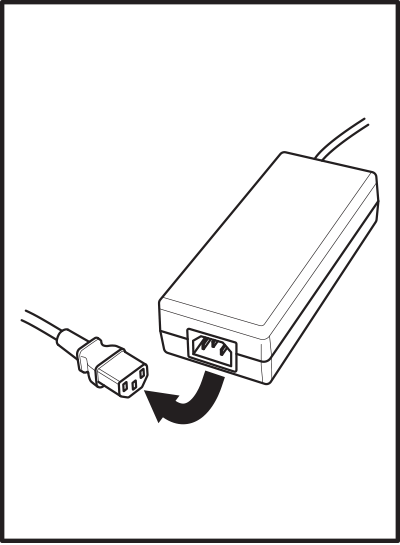
1. Unplug Power Cord from Power Supply
The first step in resetting your TRUDI is to remove power from the system.
Do this by unplugging the power cord from the power supply. Never unplug the barrel jack from the black box on the back of TRUDI.
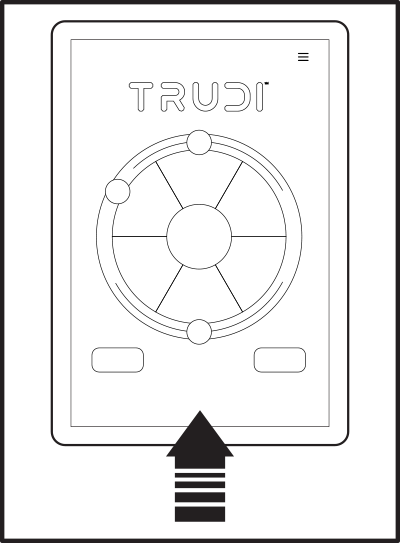
2. Swipe Up From The Bottom of The Tablet
Next, you will need to close the TRUDI application on the tablet.
Start by swiping up from the bottom of the screen.
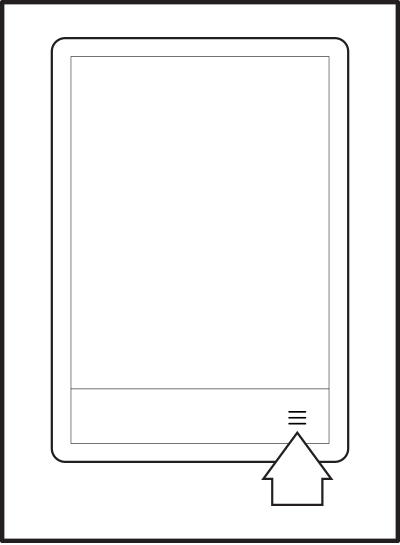
3. Click Hamburger Icon
Swiping up from the bottom of the tablet will bring up the three-button control.
Tap the hamburger icon in the bottom-right corner.
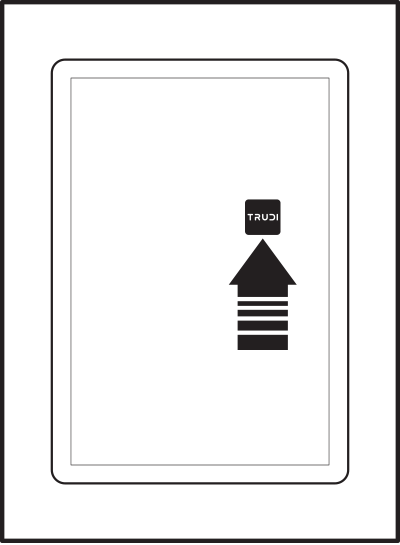
4. Swipe Up on TRUDI Application
Tapping the hamburger icon will display all applications currently running on the tablet.
Find the TRUDI application and swipe up on it to close the application.
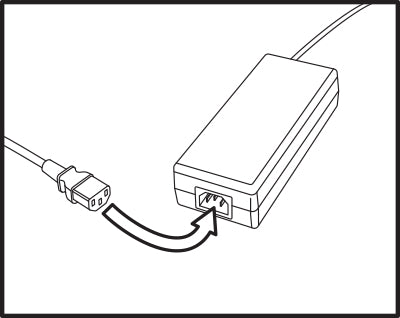
5. Connect the Power Cord to a Power Source
After confirming the barrel jack is securely plugged into the control box, plug the power supply into a wall outlet.

6. Launch the App from the Notification
Once TRUDI is connected to power, a notification will appear on the tablet with the options "Send file," "Send photo," or "Charge only." Tap any of these options to launch the TRUDI app automatically.

7. Complete the Gauge Connection
After the app launches, tap the red USB icon in the bottom-right corner of the screen to connect to the gauges.
The icon will turn green when the connection is complete and TRUDI is ready to use.

8. Troubleshooting: Notification Does Not Appear
If the notification does not appear after connecting power, reboot the tablet:
- Unplug the power cord from the wall outlet.
- Press and hold the power button on the top-right of the tablet for 5 seconds until the "Power Off" and "Reboot" options appear.
- Select "Reboot." Once the tablet restarts, repeat steps 2–4 above.